Setup
This guide gets FST ready on your local machine.
You can skip this setup if you have already followed the quick start guide
After this setup, you will have:
- the
fstCLI installed locally, - a shell that can run
fst, - one local agent target configured for FST-managed skills,
- a local human authority password set,
- a restarted agent session,
- and an FST skill visible to that agent.
Step 1: Install FST
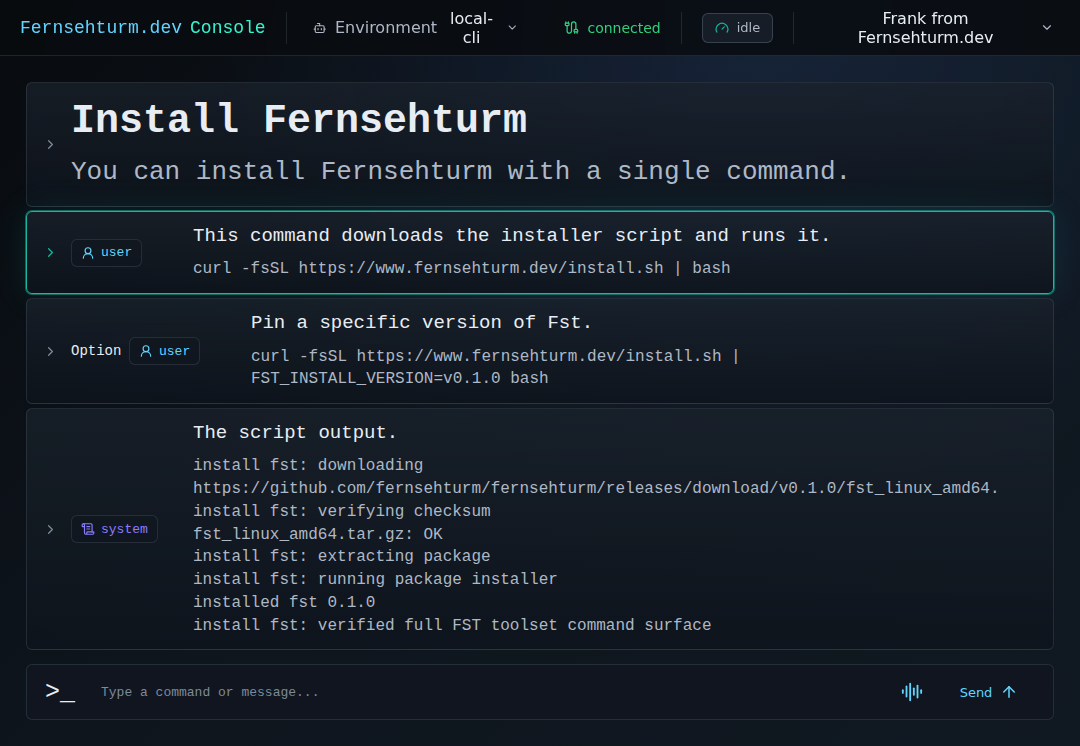
Run the installer:
curl -fsSL https://www.fernsehturm.dev/install.sh | bash
This installs the local FST tools and runtime assets.
If you want a pinned version, use an explicit release version:
curl -fsSL https://www.fernsehturm.dev/install.sh | FST_INSTALL_VERSION=v0.1.0 bash
Step 2: Make sure fst is on PATH
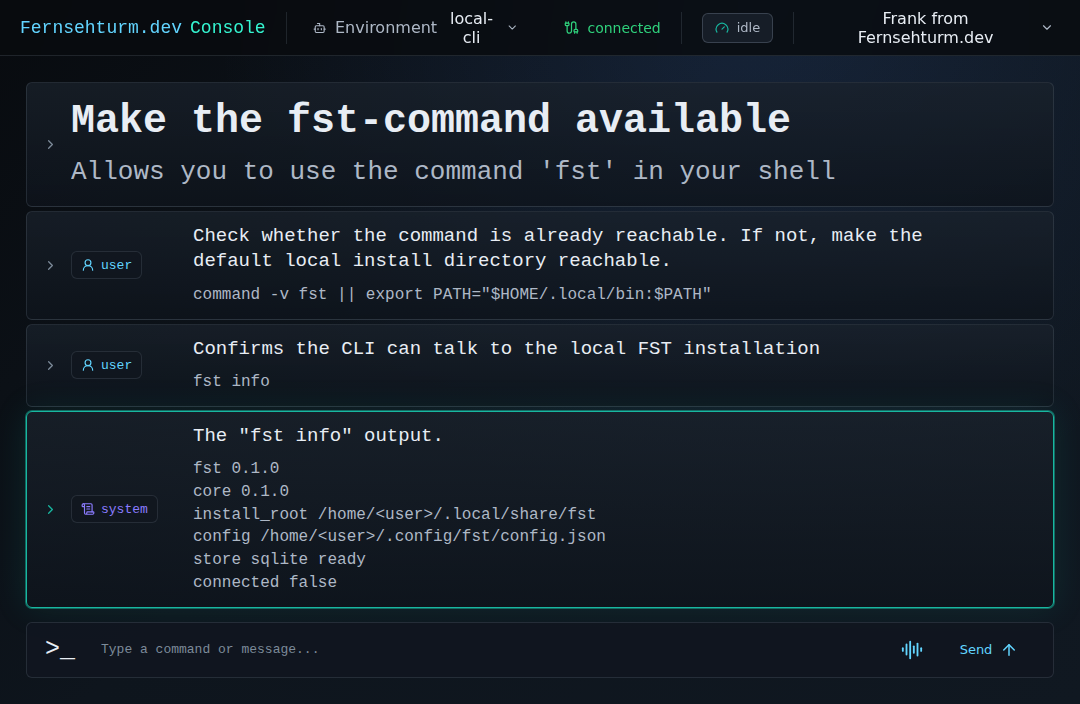
Check whether your shell can find fst, then confirm the local installation:
command -v fst || export PATH="$HOME/.local/bin:$PATH"
fst info
The exact paths and versions may differ. The important thing is that fst info runs and reports a usable local installation.
Step 3: Configure local agents
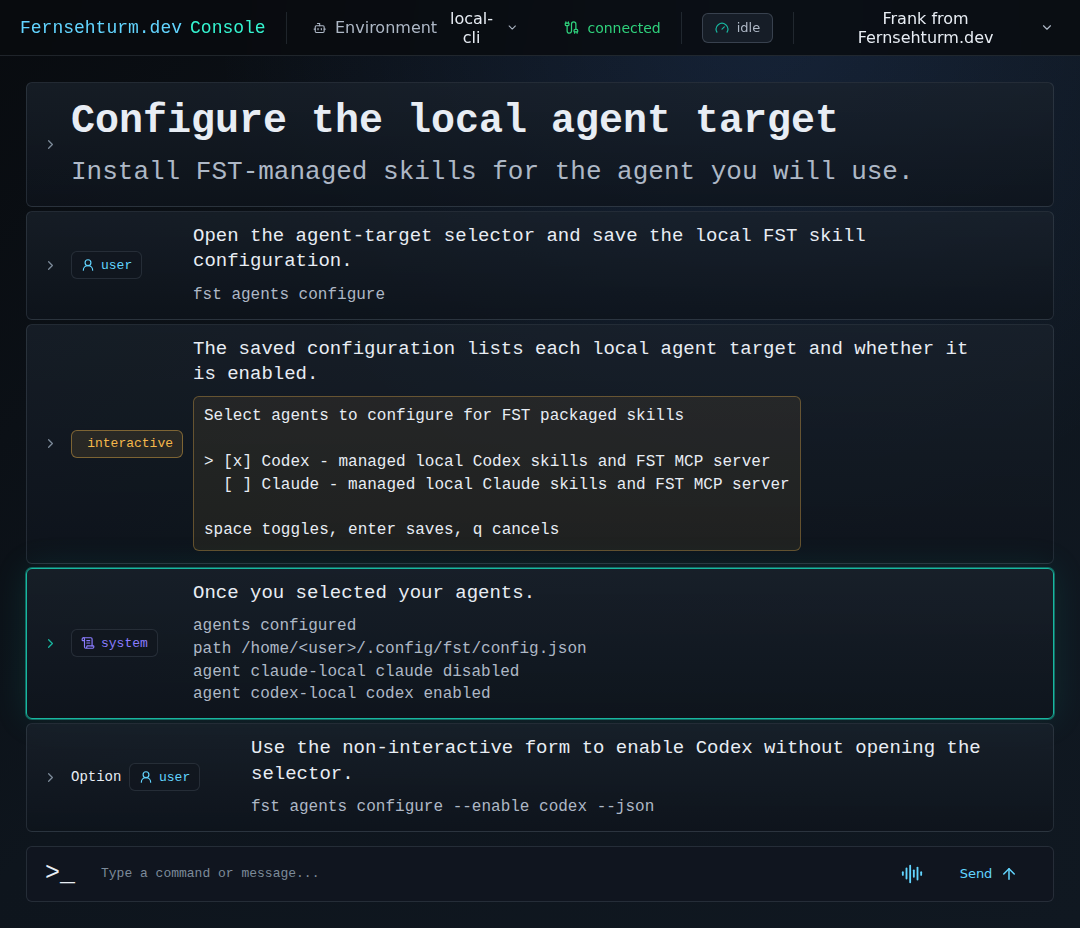
FST manages your agents' work. So, if your agent wants to perform an action, they must request it from FST. To do this, your agent must communicate with FST.
Configure the local agent target that should receive FST-managed skills:
fst agents configure
If you already know you are configuring Codex and want the non-interactive form, use:
fst agents configure --enable codex --json
This gives the selected agent a request path into FST. It does not make the agent the authority; FST still decides later whether a protected action may proceed.
Step 4: Set the local authority password
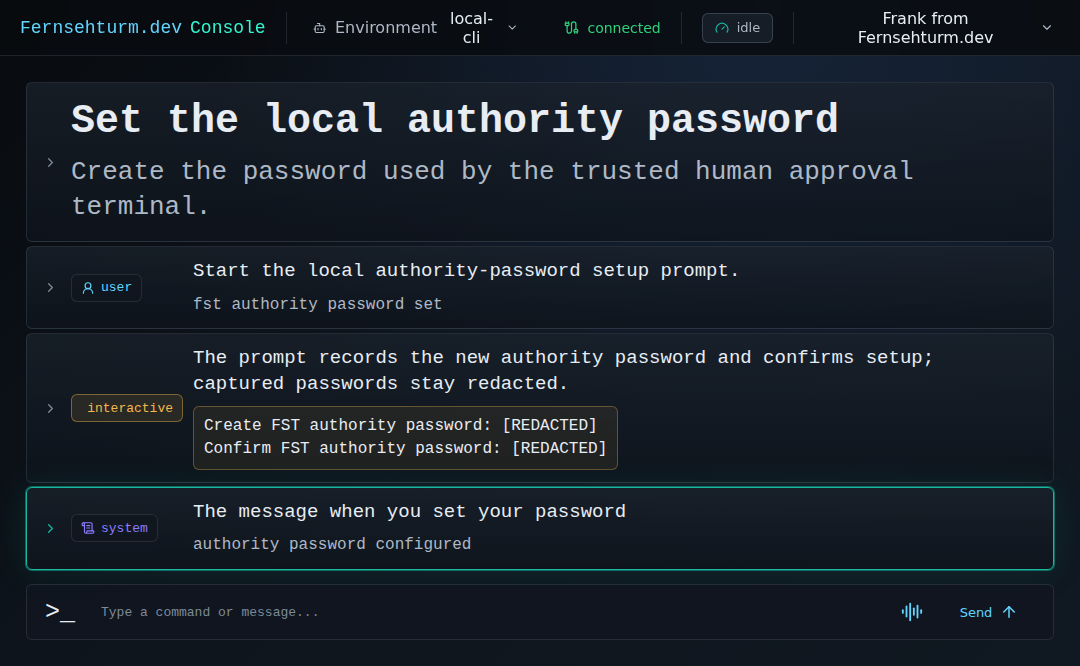
Set the authority password from the trusted human terminal:
fst authority password set
Enter the password directly in the terminal.
This password prepares the local human authority surface. It is not a general account login, team IAM system, or blanket approval for future actions.
But you need it to verify you're allowed to approve requests.
Step 5: (Re-)start the agent session
To use the newly installed version of FST, you need a new instance of your agent command-line interface.
Step 6: Confirm the FST skill is visible
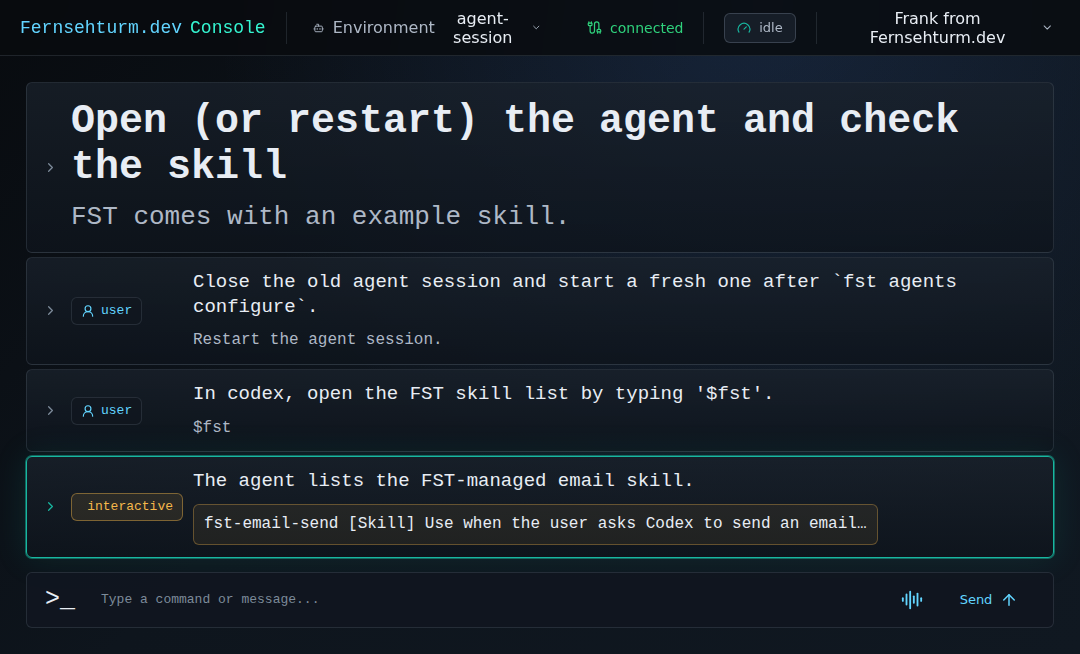
In the restarted agent, open the FST skill list:
In Codex, you use the leading $ directive, type:
$fst
You will get suggestions that include fst-email-send.
If you see this, your setup is complete.
Quick check
Use this checklist before moving to the first gated action:
-
fst inforuns successfully. - One intended agent target has been configured.
- The authority password has been set by the human operator.
- The agent session has been restarted after configuration.
- The restarted agent can see the FST skill.
If all five are true, the setup guide is complete.